
Take the tour
This page is the whole product in one scroll. No setup, no code: just what each screen is for and the question it answers, so you can decide whether it is worth ten minutes before you spend them.
If you would rather start typing, Getting started has you logging in about two minutes.
The shape of it
Section titled “The shape of it”CodeScout is two pieces. The SDK goes in your Flutter app and captures what it does. The dashboard is a Go binary and a Postgres you run yourself, and it is where you go looking.
The second half is optional. The SDK on its own gives you a searchable history on the device and a panel inside your own app, with no server and no account. Most people add the dashboard once one bug has escaped onto somebody else’s phone.
In the app itself, with no server
Section titled “In the app itself, with no server”Before any of the screens below, there is the panel inside your own app. Add the package, call
init(), and a floating button appears. Tap it and you get this, on the device, with nothing
configured and nothing uploaded.
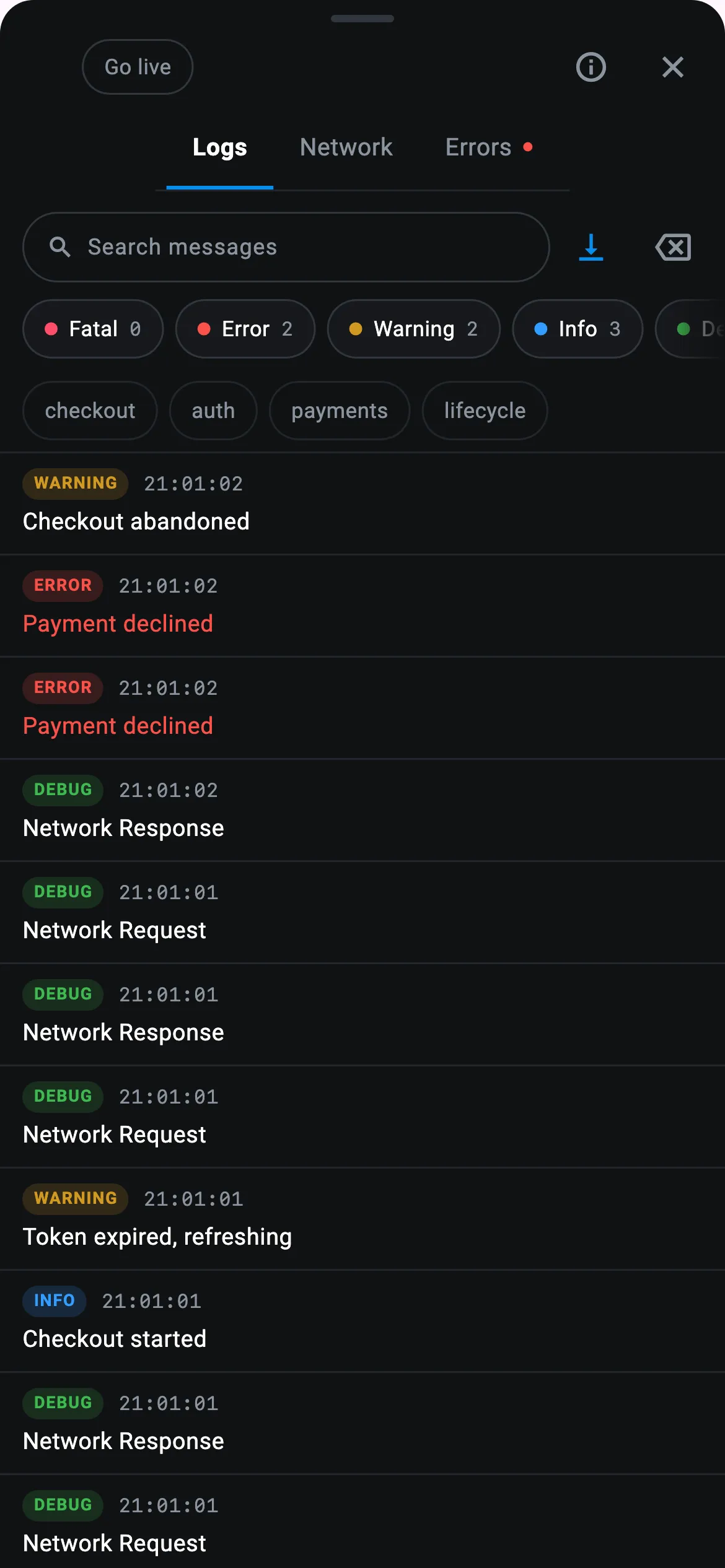 | 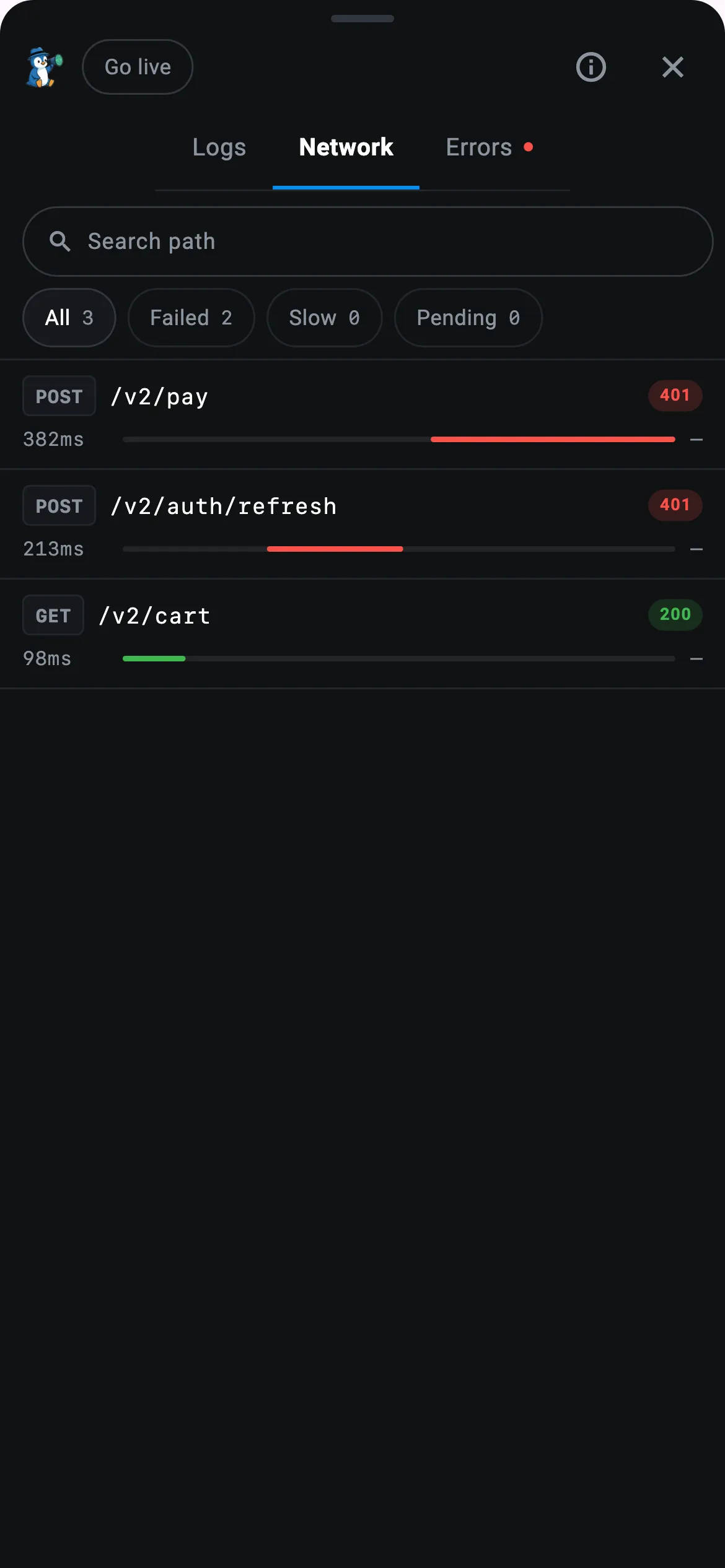 | 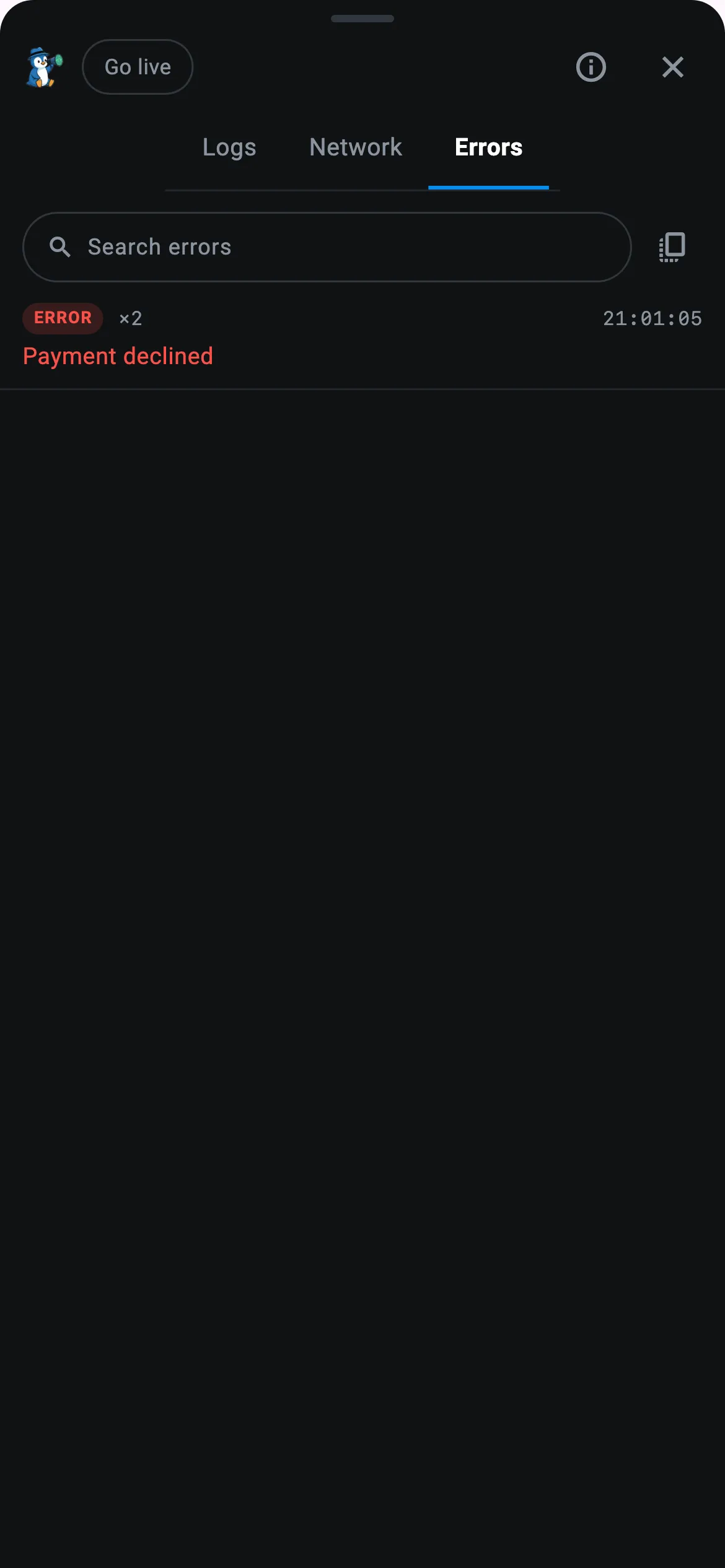 |
| Logs. Everything this launch wrote, with the levels and tags as filters. | Network. One row per call with its status and duration, both bodies a tap away. | Errors. The failures on their own, already counted. |
Two more screens sit behind icons in the header. Data reads your app’s own SQLite tables,
shared_preferences and Hive boxes on the device, read-only. Info runs a connection test and
tells you which step failed, which answers “why is nothing arriving” more often than anything else
here.
Everything from here down needs a dashboard.
Overview: is anything on fire
Section titled “Overview: is anything on fire”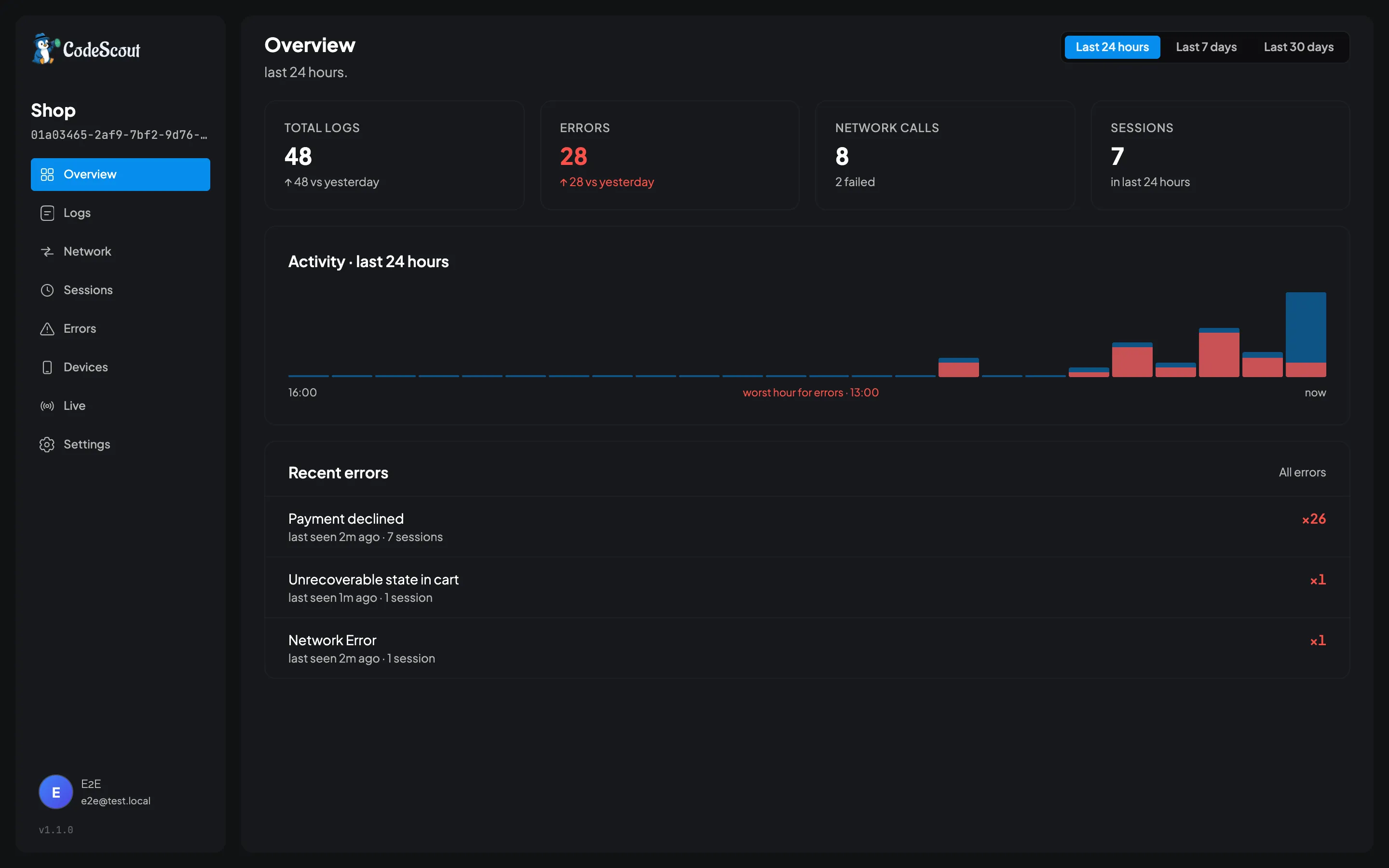
The first screen of a project. Counts for the window you pick, an activity chart, and the errors that happened most recently.
The range lives in the address bar, so last 24 hours, 7 days and 30 days are three links rather than three clicks and a lost place. The chart’s bucket grows with the range, so it always draws roughly a screen’s worth of columns: an hour each over a day, a day each over a month.
Logs: everything the app wrote
Section titled “Logs: everything the app wrote”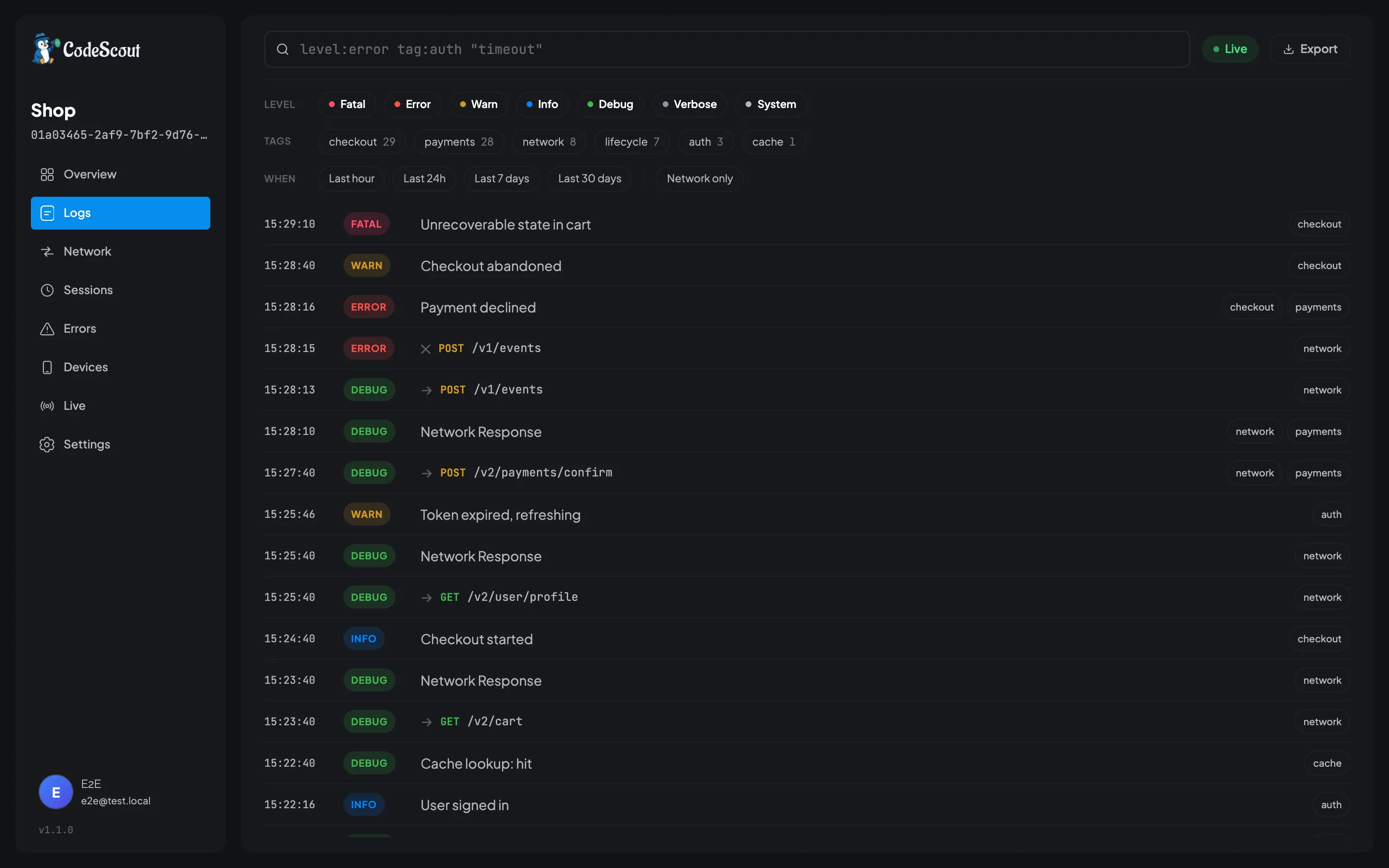
The screen you will live in. Every log from every device, newest first, with infinite scroll.
Down the left of the toolbar are the levels, which you can switch off one at a time. Next to them are your tags, each with a count, and each with three states: off, must-have, must-not-have. Then a time window, and a toggle for network calls only.
The search box takes the same query language the MCP tools use:
level:error tag:checkout last:24huser:ada@example.comdevice:pixel os:android "timed out"Every control is a link. There is no client-side state anywhere in this screen: each filter is a link to the URL you would have after clicking it. That sounds like an implementation detail and it is the reason you can paste a search into a thread and the person who opens it sees exactly what you saw.
Errors: one bug is one row
Section titled “Errors: one bug is one row”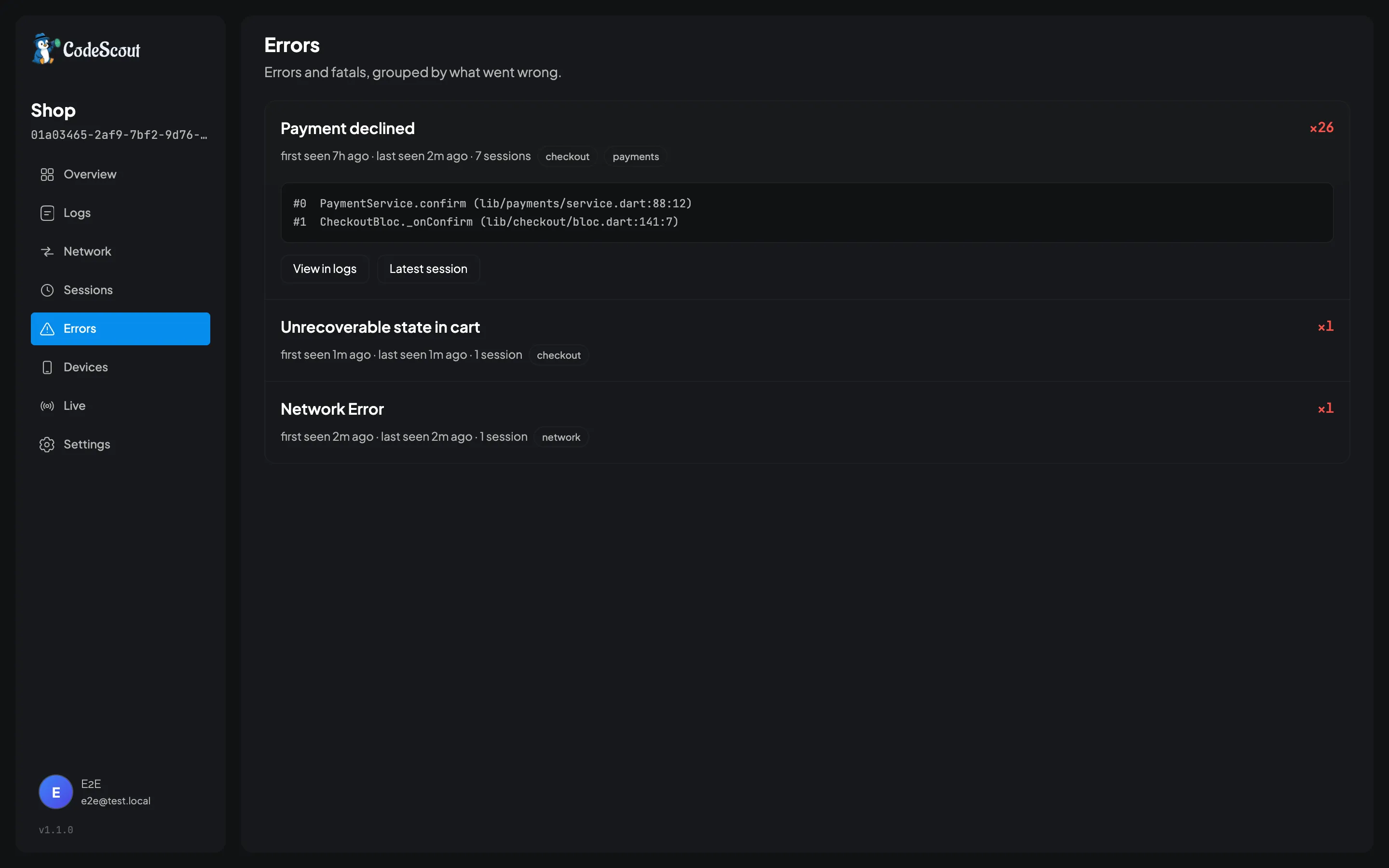
Errors and fatals, grouped by what actually went wrong, with a count and the number of sessions each one touched.
Grouping is the point. Twenty-six copies of the same failure are one row, so the bug that started
this morning is not buried under the one you already know about. The grouping key is computed at
ingest from the message with its varying parts blanked, so User 4821 not found and
User 9134 not found are one problem. Network failures group on the method and path instead,
because the message the SDK reports for all of them is the literal string Network Error.
Open a row for the latest stack trace, then jump to every occurrence in the logs, or to the launch it last happened in.
Sessions: replay one launch
Section titled “Sessions: replay one launch”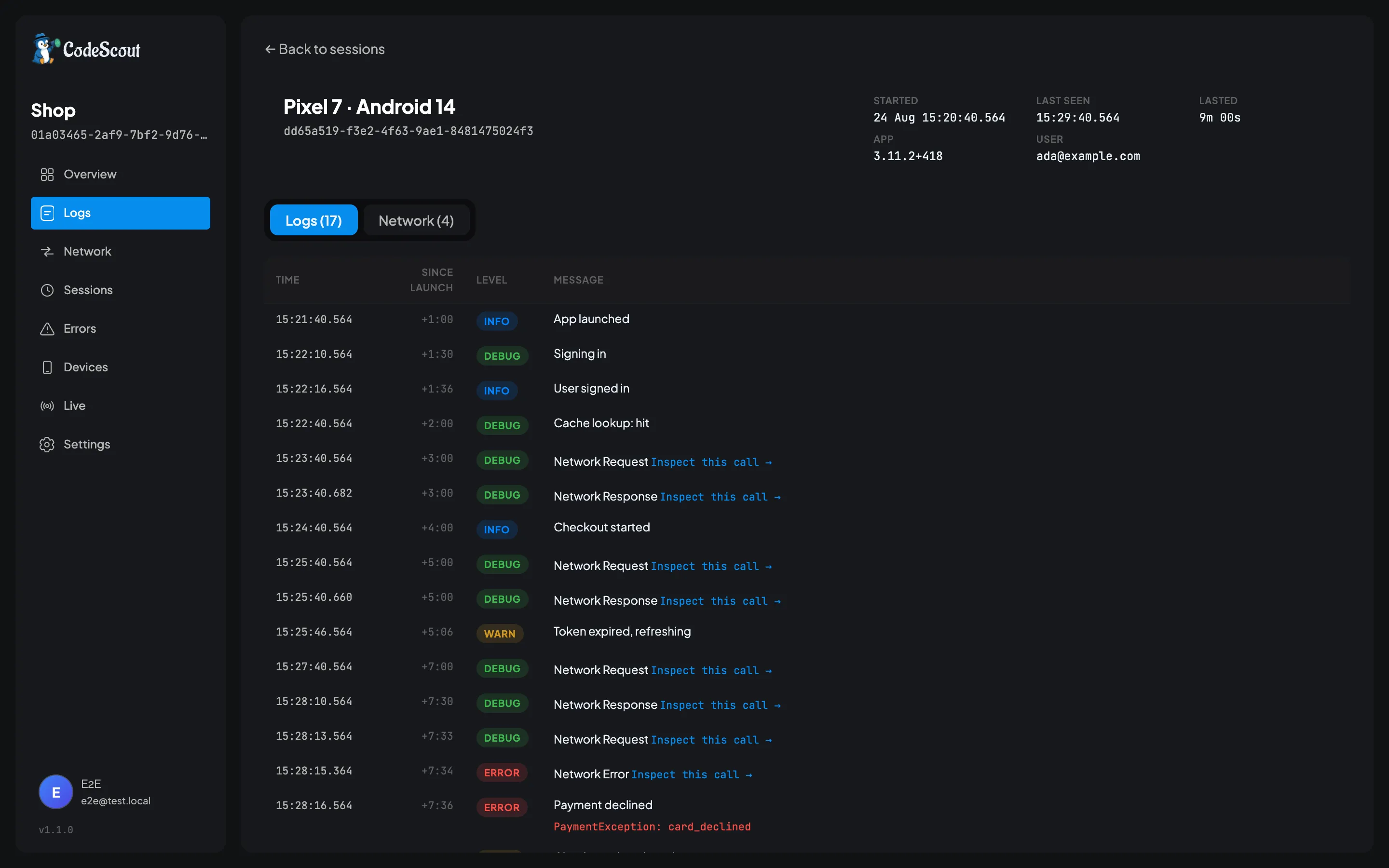
A session is one run of your app, from launch to background. This screen is all of it, in order, with the time since launch on every row.
That column is what makes it readable. “The token refresh at +5:06 came back 401, and the payment went out at +7:00 with the old one” is a sentence you can only write when you can see the gap.
The device, the OS, the app version and the build come with the session, so “only on Android 13” stops being a hunch somebody has to go and check. The Network tab beside Logs is the same inspector as the Network screen, filtered to this launch.
Network: every call and what came back
Section titled “Network: every call and what came back”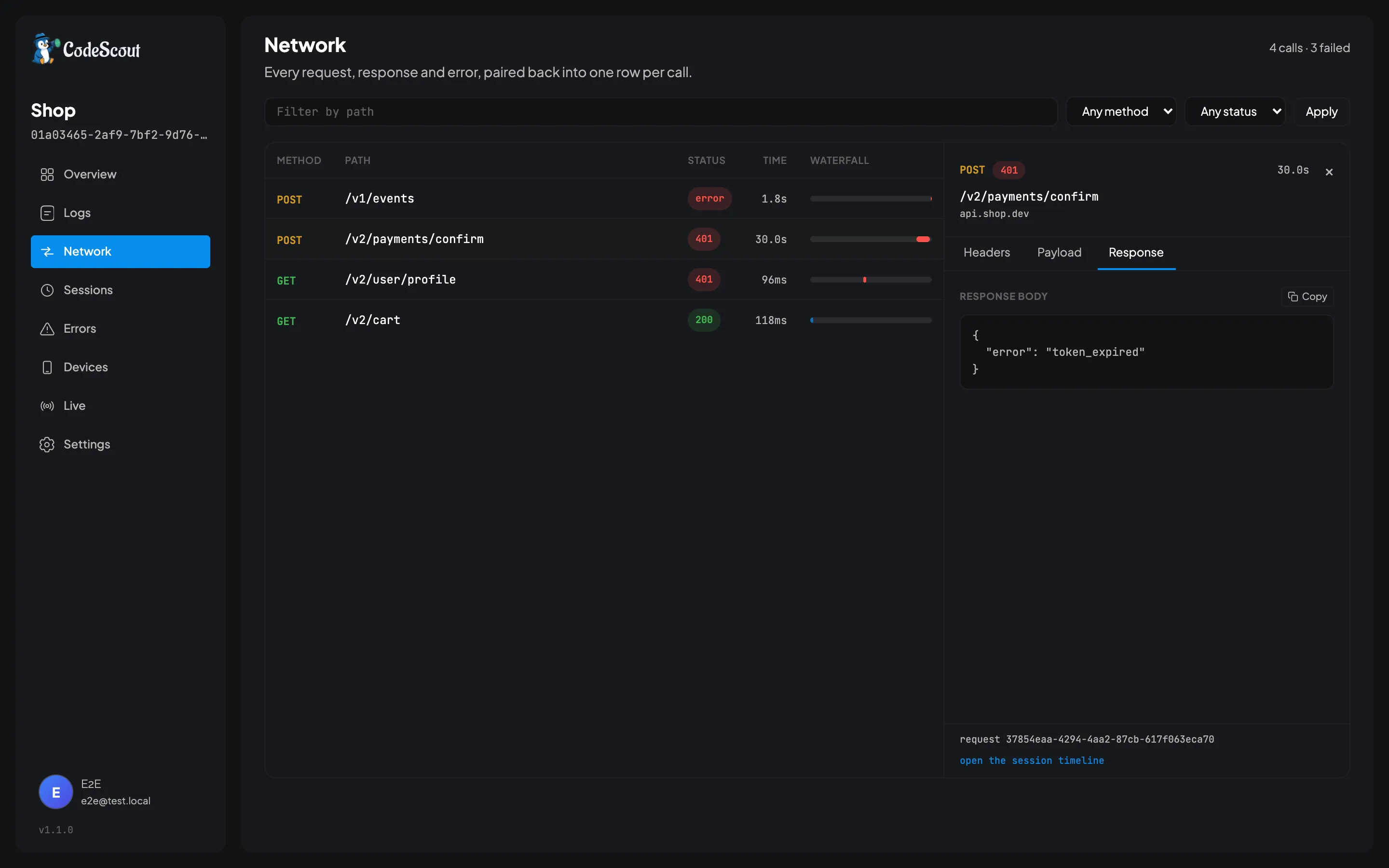
The SDK records up to two log entries for each HTTP call: one when it goes out, and one for its response or its error. This screen pairs them back into one row, and a call with only the first shows as pending.
You get the method, the path, the status, the duration and a waterfall showing where the slow one is. Click a row and the inspector opens beside it with the request headers, the body it sent and the body it got back, and it swaps without reloading the page. When your app has logged something about the call with its request id, such as a body its model could not read, that log sits above the inspector’s tabs. See When the API changes under you.
Anything you named as a secret shows as [redacted] here, because it was replaced on the phone
before the log was written. See Redaction and privacy.
Devices: who is running what
Section titled “Devices: who is running what”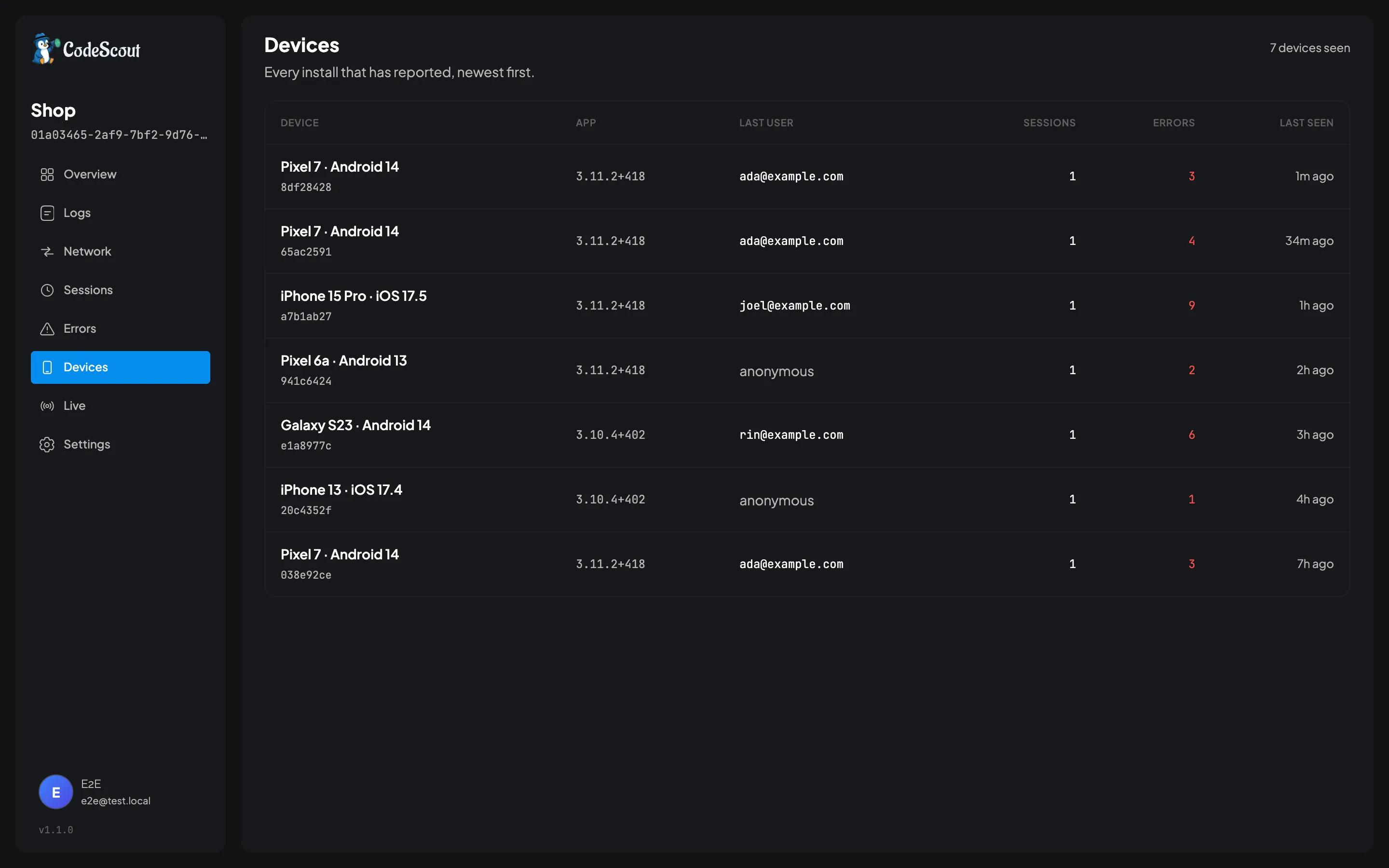
Every install that has ever reported, rolled up by a stable installation id rather than by user, so one phone stays one row across sign-ins and sign-outs.
This is where “is it only that build?” gets answered. Sessions, error counts and last seen, per install, with the app version beside it.
Live: watch a phone in real time
Section titled “Live: watch a phone in real time”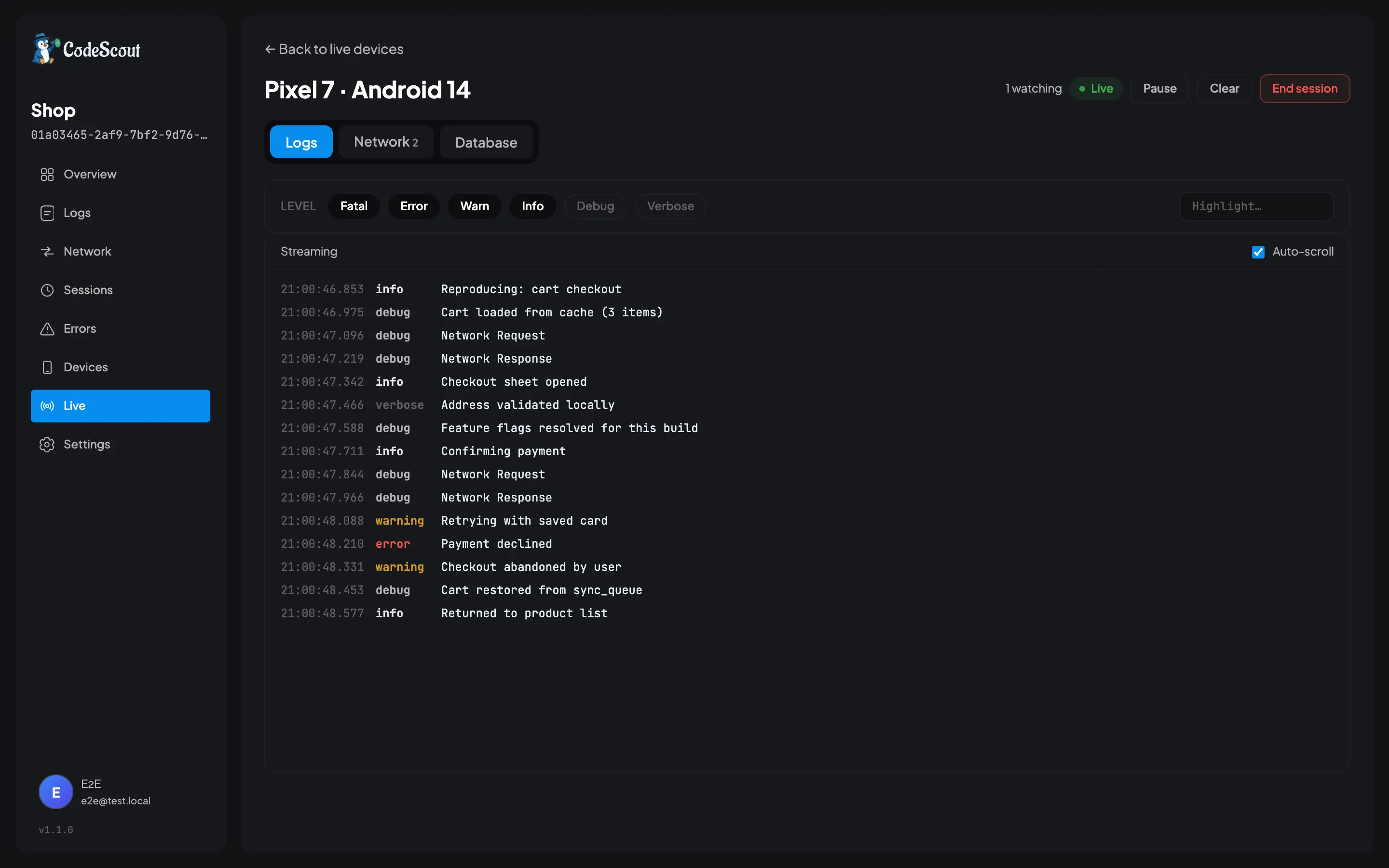
The one that is hard to do anywhere else.
You mint a pairing code, somebody types it into the panel inside the build they already have, and from that moment their logs and network calls arrive in your browser as they tap. No install, no TestFlight round trip, no account for them.
Nothing from a live session is written to your server. A live session is a socket, some facts about a phone and a fan-out, none of which survive the process, so they are held in memory and the database never hears about it. The code works once and dies after five minutes.
Full detail in Watching a device live.
Database browser: look inside the phone
Section titled “Database browser: look inside the phone”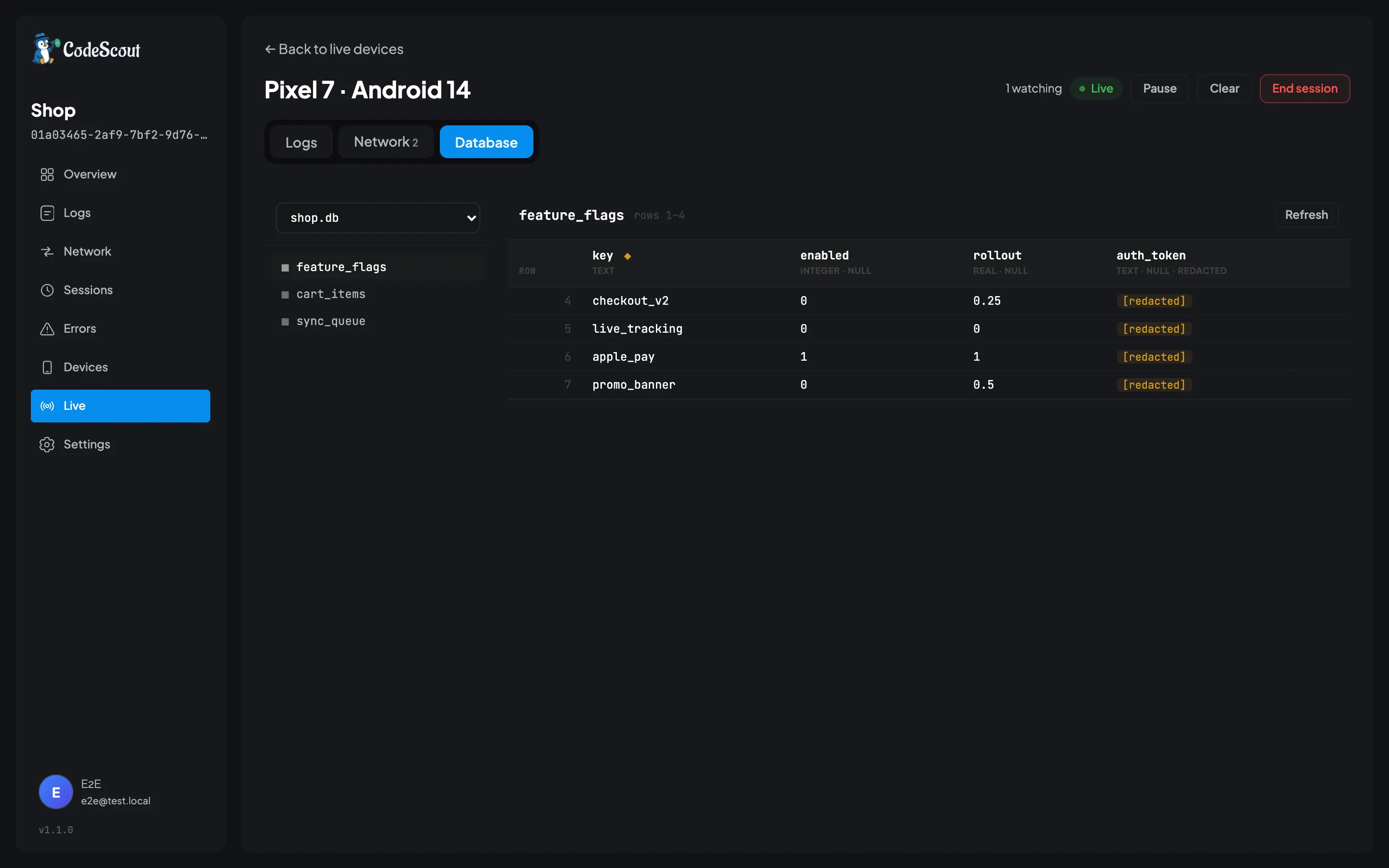
While a device is paired, the Database tab reads the app’s own local storage: SQLite tables,
shared_preferences, Hive boxes. Live, off the actual phone.
Half of “cannot reproduce” is stale data on somebody’s device, and this is how you stop guessing about it. You can change one cell at a time too, which is how you flip a feature flag or clear a token that got into a state your code cannot recover from.
Two things make that safe. Nothing is browsable until your app names it with
registerDatabase, and nothing is editable without writable: true. And the dashboard never
sends SQL. There are five structured operations and not one of them has a field a statement
could go in, so the device builds every query from its own schema.
Full detail in Browsing local storage.
The bit for coding agents
Section titled “The bit for coding agents”There is no screenshot for this one, because it happens in your editor.
/api/mcp gives a coding agent read-only access to everything above: search logs, read error
groups, pull a whole session timeline, inspect a network call, list live sessions, and read a
paired device’s databases. Eighteen tools, wrapping the same services the screens use, so the two
cannot answer differently.
The workflow it is built for: your tester hits a bug and copies the session id out of the panel inside your app. That id is the bug report. Paste it to your agent and it reads the launch itself rather than asking you what happened.
It is a URL and a bearer header, so any client that speaks MCP can use it:
{ "mcpServers": { "code-scout": { "url": "https://logs.example.com/api/mcp", "headers": { "Authorization": "Bearer csp_…" } } }}Claude Code, Cursor, VS Code and Windsurf each spell that slightly differently, and the exact block for each is in Reading it with an AI agent, along with all eighteen tools.
What you decide before real users see it
Section titled “What you decide before real users see it”Two settings are worth a deliberate decision rather than a default, and both have their own page.
Redaction is opt-in: nothing is hidden unless your app names it, because the token is sometimes the bug. Name your auth headers and your password fields and they are replaced on the phone, before anything is written to disk.
Volume is how you stop a chatty app filling a disk. Session sampling keeps one launch in ten rather than one log in ten, so the launches you keep are whole. Retention and a daily cap are instance settings you can change without a restart.
Where to go next
Section titled “Where to go next”- Getting started: logging in about two minutes
- Writing logs: levels, tags, metadata, and the API
- Server setup: running the dashboard yourself