Getting Started
CodeScout works in two steps, and the first one does not need a server at all.
You need Flutter 3.38 or newer (Dart 3.10). If you are on an older one, flutter pub add will
refuse to resolve rather than explain itself, so that is the first thing to check.
1. Install the package
Section titled “1. Install the package”flutter pub add code_scoutWhat you are aiming at
Section titled “What you are aiming at”One package and one call, and you have this on the device:
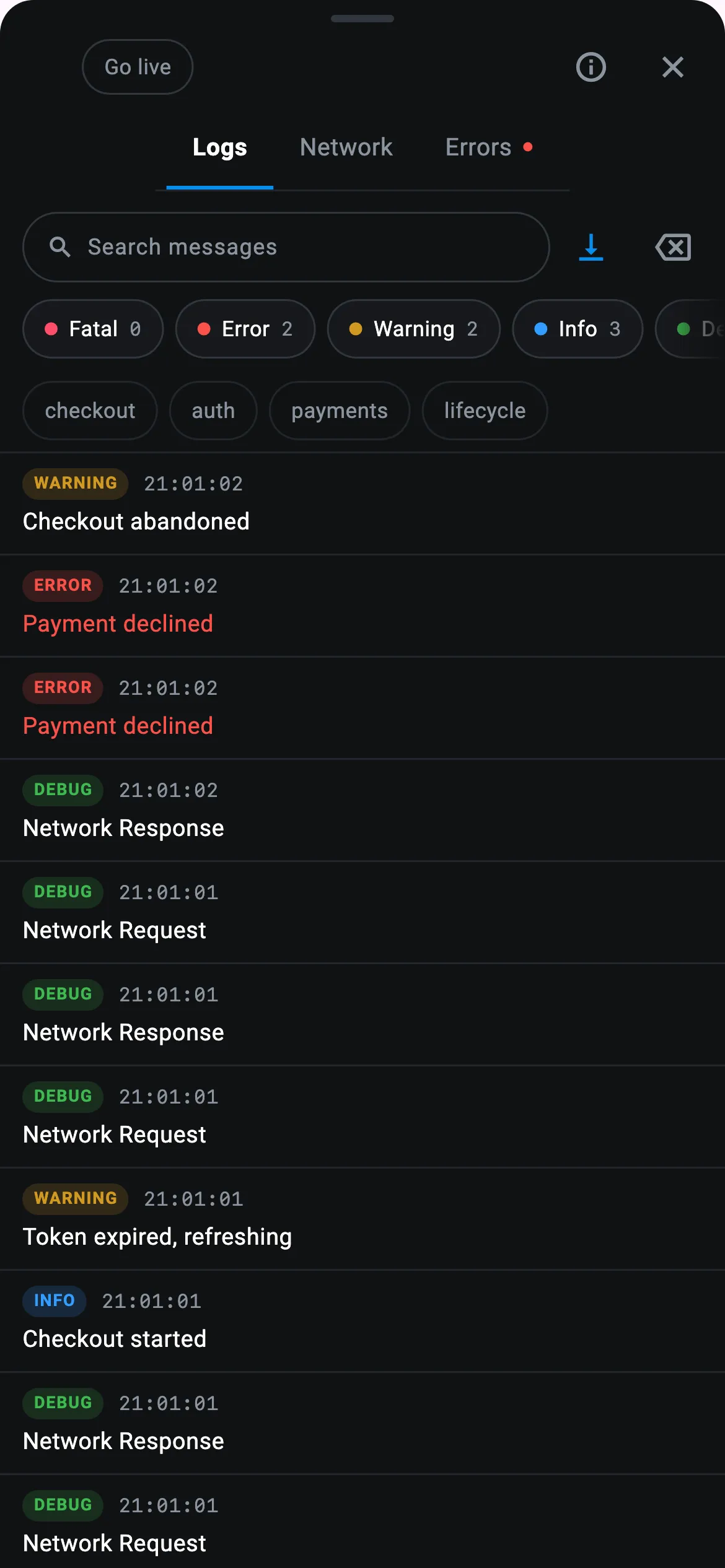
No server, no account, nothing uploaded. The dashboard comes later, and only if you want it.
2. Start it up
Section titled “2. Start it up”CodeScout needs a BuildContext in order to place its floating button into your widget tree, so
init() is called from a widget inside your MaterialApp, after the first frame has been drawn,
rather than at the top of main(). The button goes into the nearest Overlay, and in a normal
app that is the one MaterialApp builds, so a context taken from above it has nothing to insert
into. Everything else in the SDK works without a context, but you will not get the in-app panel,
and that panel is most of what makes the first ten minutes useful.
import 'package:code_scout/code_scout.dart';import 'package:flutter/material.dart';
void main() => runApp(const App());
class App extends StatelessWidget {  const App({super.key});
  @override  Widget build(BuildContext context) => const MaterialApp(home: Home());}
class Home extends StatefulWidget {  const Home({super.key});
  @override  State<Home> createState() => _HomeState();}
class _HomeState extends State<Home> {  @override  void initState() {    super.initState();
    WidgetsBinding.instance.addPostFrameCallback((_) async {      await CodeScout.instance.init(        // This is how the overlay finds a live context again after your app        // has navigated somewhere else.        freshContextFetcher: () => context,        configuration: CodeScoutConfiguration(          logging: LoggingBehavior(minimumLevel: LogLevel.all),        ),      );    });  }
  @override  Widget build(BuildContext context) =>      const Scaffold(body: Center(child: Text('Hello')));}
That is a complete setup. You now have colour coded output in your console and a panel you can open on the phone itself, and nothing leaves the device. This is a genuine way to use Code Scout rather than a trial mode that expires.
Now write a few logs:
final scout = CodeScout.instance;
scout.d('Fetching user profile');                       // debugscout.i('User signed in', tags: {'auth'});              // infoscout.w('Cache miss', metadata: {'key': 'user_prefs'}); // warningscout.e('Payment failed', error: e, stackTrace: st);    // error
3. Open the panel
Section titled “3. Open the panel”Tap the floating button and you will see three tabs.
Logs shows everything your app has written this launch. You can search it, switch individual levels on and off, filter by tag, and pause the list when it is moving faster than you can read it.
Network shows one row for every HTTP call, but only once you have completed step 5 below.
Errors shows errors and fatals on their own, counted, so that the same failure happening fifty times appears as a single line rather than filling the screen.
There are also two icons in the header of the panel. Info tells you whether anything is reaching a dashboard and what is currently being captured. Data appears once you have registered a database, and it lets you read that database on the device.
One thing is worth understanding about the panel. It reads the last 500 logs of the current launch from memory, so when you restart the app it starts empty again. That buffer is not the same thing as the SQLite store. SQLite exists to hold logs until they have been uploaded, and nothing on the device ever reads them back for you to browse.
4. Add a dashboard when you want one
Section titled “4. Add a dashboard when you want one”Run the server, which is covered in Server Setup, create a project in it, and then add that project’s credentials to the configuration you already have:
configuration: CodeScoutConfiguration( logging: LoggingBehavior(minimumLevel: LogLevel.all), projectCredentials: ProjectCredentials( link: 'https://scout.yourteam.dev/', projectID: 'a3f2c7d1-4e88-4b21-9f60-1c2d3e4f9c41', projectSecret: 'your-project-secret', ), // Without this line nothing is ever uploaded. There is no default. sync: LogSyncBehavior(syncInterval: Duration(seconds: 30)),),The link value has three rules, and the SDK throws an error when you construct
ProjectCredentials rather than failing quietly on the first upload attempt. The link must
begin with http:// or https://, it must contain a host, and it must end with a trailing
slash.
So http://192.168.1.24:24275/ is accepted, while localhost:24275/ is rejected. The reason
that second one fails is worth knowing, because it looks correct at a glance. Dart parses it as
a URL whose scheme is localhost and whose host is empty, which means it is technically an
absolute URI and completely unusable.
When the dashboard stays empty
Section titled “When the dashboard stays empty”Open the panel and tap the info icon. The Info screen begins with a single line telling you either the name of the project you are connected to, or the specific reason that you are not connected. If you press Test connection, it runs four checks in order and stops at the first one that fails, so you can tell whether the problem is the address, the network or the secret.
Two mistakes account for most first attempts, and the Info screen names both of them.
The first is that localhost means the phone. On a real device, localhost refers to that
device and not to your laptop, so you need to use your machine’s address on the local network
instead.
The second is that Android blocks plain HTTP traffic by default. You can either use https, or
allow cleartext for that particular host in your network security configuration while you are
developing.
5. Capture network calls
Section titled “5. Capture network calls”The core package deliberately has no HTTP dependency of its own, so network interception lives in a separate companion package. Install whichever one matches the client your app already uses:
flutter pub add code_scout_dio # if you use Dioflutter pub add code_scout_http # if you use package:httpflutter pub add code_scout_talker # if you already log through Talkerimport 'package:code_scout_dio/code_scout_dio.dart';import 'package:dio/dio.dart';
final dio = Dio();dio.interceptors.add(CodeScoutDioInterceptor());import 'package:code_scout_http/code_scout_http.dart';import 'package:http/http.dart' as http;
final client = CodeScoutHttpClient(client: http.Client());final response = await client.get(Uri.parse('https://api.example.com/data'));Every call writes one log when the request goes out, and at most one more: a response or an error, never both. They share a request id, which is how the panel and the dashboard know to show them as a single row rather than as two unrelated entries. A call whose answer was never recorded keeps only the first, and shows as pending.
Your own logs can carry that id too, which is how an error your model throws on a response body is shown beside the call that returned it. When the API changes under you covers it.
If your Network tab stays empty, the Info screen will tell you which of the three companion packages it can actually see. It is able to distinguish between a package that was never installed and one that is installed but has not captured anything yet, because each companion announces itself to the SDK at the moment you construct it.
6. Before you ship
Section titled “6. Before you ship”Two things are not automatically limited to debug builds, and both will follow you into production if you do not deal with them.
The first is the floating button, which init() creates regardless of build mode. Either call
CodeScout.instance.hideIcon(), or wrap the whole setup in a kDebugMode check.
The second is redaction, because nothing is redacted unless you ask for it. Out of the box CodeScout
records the headers and bodies that your app sends, and that includes the Authorization
header. This is deliberate, since the token is sometimes the very thing you are trying to debug,
but it is not what you want when the app is in the hands of real users.
RedactionBehavior.recommended() covers the usual suspects in a single line. Read
Redaction and Privacy before you point this at anybody else.
Console printing is the one exception to all of this, because it already defaults to off in release builds.
What’s next
Section titled “What’s next”- Logging covers levels, tags, metadata and stack traces.
- Network Inspection covers what is captured and how it is shown.
- Sessions and Identity covers naming the person using the app.
- Watching a Device Live covers pairing with a device and watching it stream.
- Browsing Local Storage covers reading the app’s own database.
- Redaction and Privacy covers keeping credentials off the wire.
- Controlling Volume covers sampling and caps before production.