
Logging
A log you can search is worth twenty you have to scroll past. This page is about writing the first kind: what the levels are for, why tags earn their keep, and what to put in metadata so that the version of you debugging this in three weeks has something to work with.
If you have not installed anything yet, Getting started comes first.
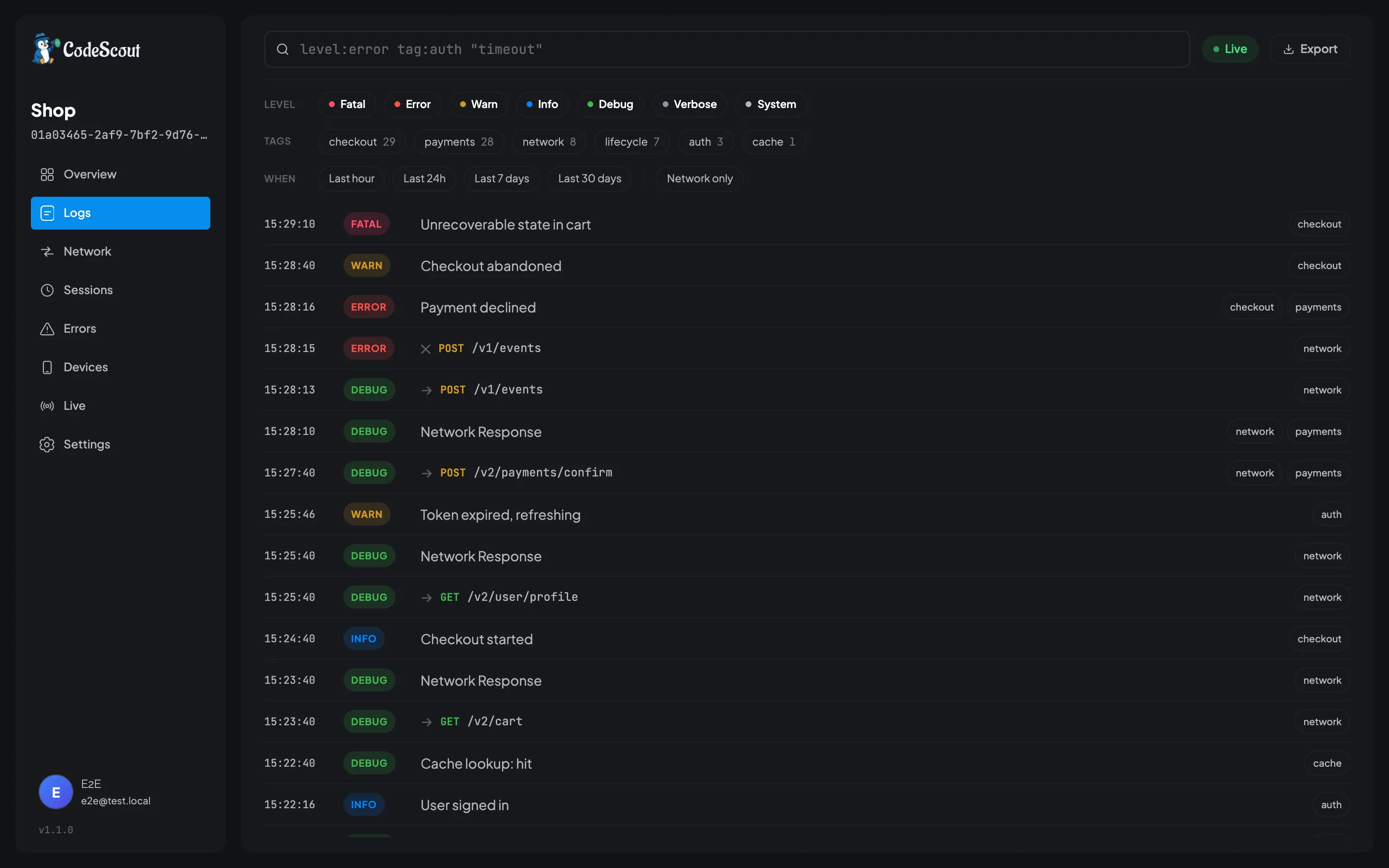
Everything you write here is what fills that screen. The level chooses the colour and whether it is kept at all, the tags become the chips along the toolbar, and the metadata is what you read once you have found the row.
The shorthand
Section titled “The shorthand”Most of your logging will be one of six calls:
final scout = CodeScout.instance;
scout.v('Cache lookup: key=user_123, hit=true');  // verbosescout.d('Building profile widget');                // debugscout.i('User completed onboarding');              // infoscout.w('API took 5.2s, over the 3s threshold');   // warningscout.e('Failed to load profile', error: e);       // errorscout.f('Database corruption detected');           // fatal
These are fire and forget, and they never throw. A logging call is not a place where your app should be able to fail, so anything that goes wrong inside one is caught and reported to the debug console rather than being handed back to you.
When the level is not known until runtime, use the full form instead:
CodeScout.instance.log( level: someLevel, message: 'Something happened',);There is also logMessage(), which takes the same arguments but can be awaited and will throw
if the write actually failed. Use it for the rare case where you need to know a log was stored,
such as the last thing you write before a controlled shutdown. It returns normally when a log is
simply dropped by the level gate, the tag filter or sampling, because those are the
configuration working as intended rather than a failure.
Tags are how you cut the noise later. They are a Set, because a tag is either on a log or it
is not:
scout.i('Payment processed', tags: {'payments', 'stripe'});Both the dashboard and the in-app panel give you a chip per tag, and each chip cycles through
three states as you tap it: include, exclude, and then back to neutral. Excluding heartbeat is
usually more useful than including anything.
Including two tags means different things in the two places, so it is worth knowing which one you
are reading. On the dashboard, tag:payments tag:stripe narrows to the logs carrying both. In the
in-app panel, tapping two chips widens the list to the logs carrying either. Excluding behaves the
same in both: a log carrying an excluded tag is hidden, whatever else it carries.
You can also narrow what gets captured in the first place, which is a different thing from filtering what you look at afterwards:
LoggingBehavior( enabledTags: {'payments', 'auth', 'network'}, allowUntagged: false,)enabledTags defaults to {'*'}, which is a wildcard meaning keep everything. The moment you
replace it with a real list, you are opting out of every tag you did not name.
allowUntagged decides what happens to a log with no tags at all. It defaults to true, so
untagged logs are kept. Setting it to false alongside a narrow enabledTags is the most
aggressive filter available, and it will drop most of what you write unless you are diligent
about tagging.
Metadata
Section titled “Metadata”Structured data that travels with the log:
scout.i('Order placed', metadata: { 'orderId': 'ORD-12345', 'amount': 29.99, 'currency': 'USD', 'items': 3,});Metadata is JSON encoded on the way into the database, so it has to contain things JSON knows about: strings, numbers, booleans, null, lists and maps of those.
Metadata is also a common place for credentials to end up by accident. Anything you name in
RedactionBehavior.bodyKeys is stripped from metadata as well, at any depth. See
Redaction and Privacy.
Errors and stack traces
Section titled “Errors and stack traces”try { await riskyOperation();} catch (e, stackTrace) { scout.e('Operation failed', error: e, stackTrace: stackTrace);}Stack traces are parsed into structured frames, each with a method, a file, a line and a column, so the dashboard can render them as frames rather than as a wall of text.
Two limits are worth knowing. Only the first ten frames are kept, which is almost always enough
because the frame you want is near the top. And only frames from a package: URI are parsed at
all, so frames from dart: internals are dropped. If a trace comes back empty, that is usually
why.
Errors are also grouped, though the two places that group them do it differently and for good reason.
The dashboard groups on the message with its varying parts blanked, so User 4821 not found and
User 9134 not found become one problem rather than two. Network failures are grouped by method
and path instead, because every network error the SDK reports carries the same message.
The Errors tab in the in-app panel groups on the exact message and error text instead, with network failures kept one row per call by their request id, since every one of them carries the same message. It is looking at one launch of one app rather than at everything a project has ever sent, so it does not need the same machinery, and keeping the two independent means neither can drift into disagreeing with the other about a message it has never seen.
You can also set includeCurrentStackTrace: true to attach a trace to every log rather than
only the ones you hand one to. Turn it on while you are chasing something specific, and turn it
off again afterwards. Capturing and parsing a trace on every log is not a cost worth paying for
the life of the app.
Linking a log to a network call
Section titled “Linking a log to a network call”Every logging call takes an optional requestId, the id of the HTTP call the log is about. The
companion packages put that id on the response as codeScoutRequestId:
scout.e('Could not read GET /v2/cart', error: e, stackTrace: st, requestId: response.codeScoutRequestId);The log is then shown with the call: under Logged by the app in the in-app panel and in the
dashboard’s network inspector, and beside the call’s own logs when you search the log viewer for
request: and the id. It stays an ordinary log. It is not a network log, so its metadata is
redacted and its stack trace kept like any other log’s, and it never changes the call’s status,
duration or count.
Only a UUID in the standard 8-4-4-4-12 form is kept, in lowercase. Anything else is dropped from the log, because the server stores request ids as UUIDs and one that did not parse would fail the whole upload. The log itself is still written, and the SDK says once per launch in the debug console that it dropped an id.
Pass the codeScoutRequestId the companion package gives you. Your backend’s own X-Request-Id is
the wrong id even when it is a UUID: it is kept, and it links the log to a call CodeScout never
recorded.
The usual reason to link a log is a response body your model could not read, which has a page of
its own: When the API changes under you. The parameter needs
code_scout 1.6.0, and the getter needs code_scout_dio 1.1.0 or code_scout_http 1.1.0.
What happens to a log after you write it
Section titled “What happens to a log after you write it”- If it is below
minimumLevel, or its tags are excluded, it stops here and nothing else happens. - Your console prints it, formatted and colour coded, as long as
printToConsoleis true. It defaults tokDebugMode, so release builds are quiet unless you ask otherwise. - The in-app panel’s buffer gets it, so you can read it on the phone. That buffer holds the last 500 logs of the current launch and is emptied when the app restarts.
- If a live session is running, it is published to whoever is watching. This happens before sampling, because somebody who deliberately paired with this device should see everything.
- If this launch was sampled out, it stops here and is never written to disk.
- If there is nowhere to upload to, because there are no credentials or no
sync:block, it stops here and is never written to disk. SQLite is the uploader’s queue rather than a store anything reads back, so with no uploader there would be nothing to drain it. - SQLite stores it.
- A background worker batches, compresses and uploads it.
- On a successful upload the local rows are deleted. On a failure they are rolled back and tried again next cycle, so nothing is lost while your server is down.
Steps 2 and 3 happen whether or not a server is configured and whether or not this launch is being recorded. That is deliberate, because they cost nothing and they are what you are actually looking at while you work.
When nothing seems to be happening
Section titled “When nothing seems to be happening”Open the panel and tap the info icon. The Info screen shows what is being captured right now, including your effective minimum level, whether this launch was sampled in, how many fields redaction is stripping, and how full the buffer is. If logs are reaching the phone but not the dashboard, it also shows the upload state and the reason for any pause.